
This guide shows you exactly how to install MT4 and MT5 indicators on your MetaTrader platform, step by step. Every custom indicator on forexmt4systems.com arrives as a compiled file — an .ex4 for MetaTrader 4 and an .ex5 for MetaTrader 5 — so once you copy it into the correct folder it loads onto your chart like any built-in tool. In short, the whole job takes about a minute, and it works the same way for every indicator on this site.
First, the good news: there is no compiling, no coding, and no special permission to switch on. Instead, you download a file, drop it into one folder, refresh the platform, and drag it onto a chart. Below, you will find the full walkthrough for both platforms, plus where MetaTrader keeps its files, how to switch on alerts, how to update or remove a tool, and how to fix the few issues that occasionally come up.
What you need before you install MT4 and MT5 indicators
Before you begin, get the following ready:
- A working installation of MetaTrader 4 or MetaTrader 5 from your broker or from MetaQuotes.
- The indicator you downloaded from this site, unzipped. You will see an
.ex4file for MT4 or an.ex5file for MT5. - A chart open on the pair or instrument you want to analyse.
Because the downloads arrive as compiled, ready-to-run files, you do not need the MQL source code, and you never have to open MetaEditor. As a result, installation stays simple and identical across every tool in the library.
How to install MT4 and MT5 indicators step by step
The core idea stays the same on both platforms: first you copy the file into the terminal’s Indicators folder, then you refresh the Navigator, and finally you drag it onto a chart. The diagram below sums up those three steps, while the platform-specific instructions follow underneath.
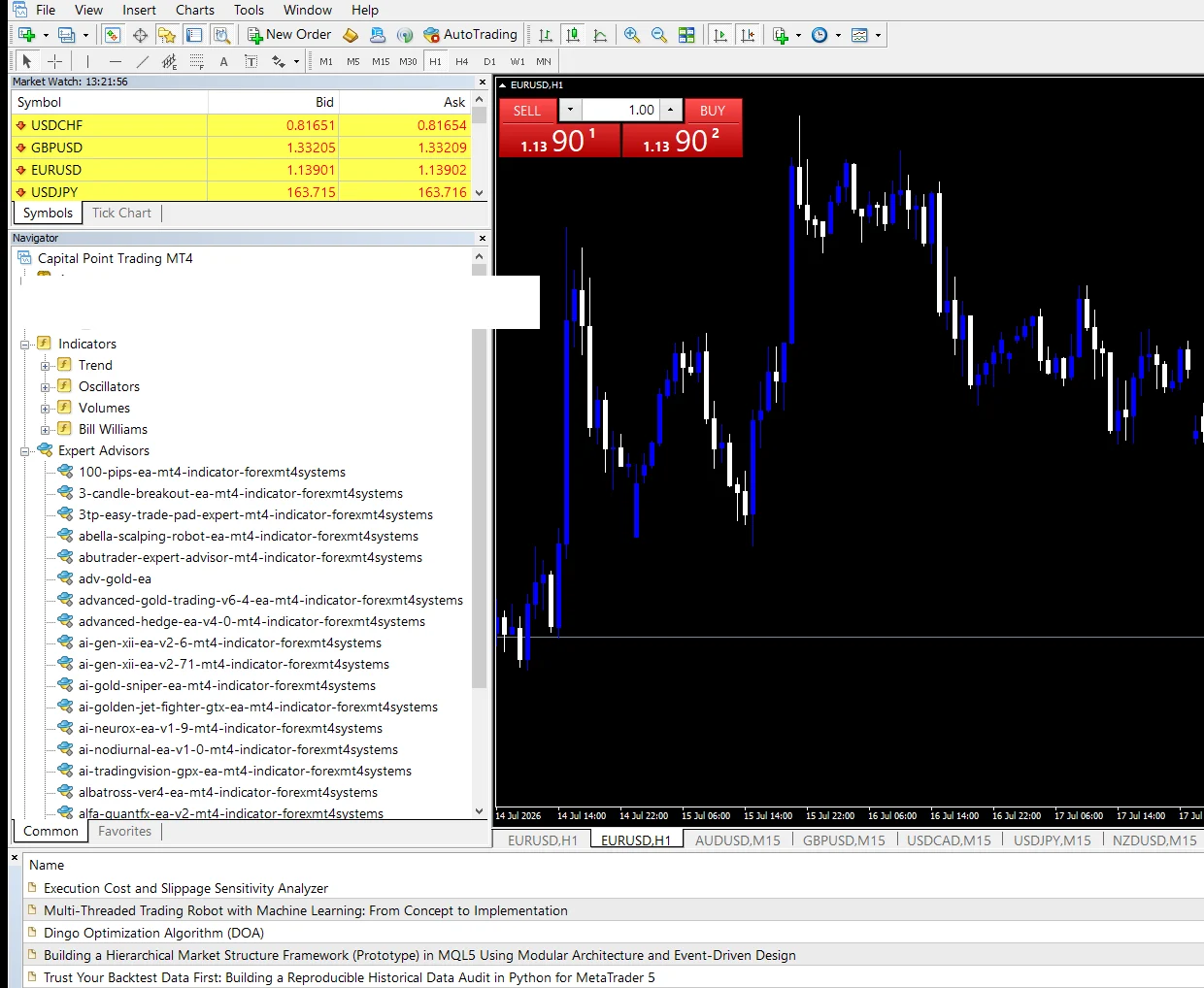
Install a custom indicator on MetaTrader 4
- Download and unzip the indicator, then locate the
.ex4file. - Open MetaTrader 4 and click File → Open Data Folder.
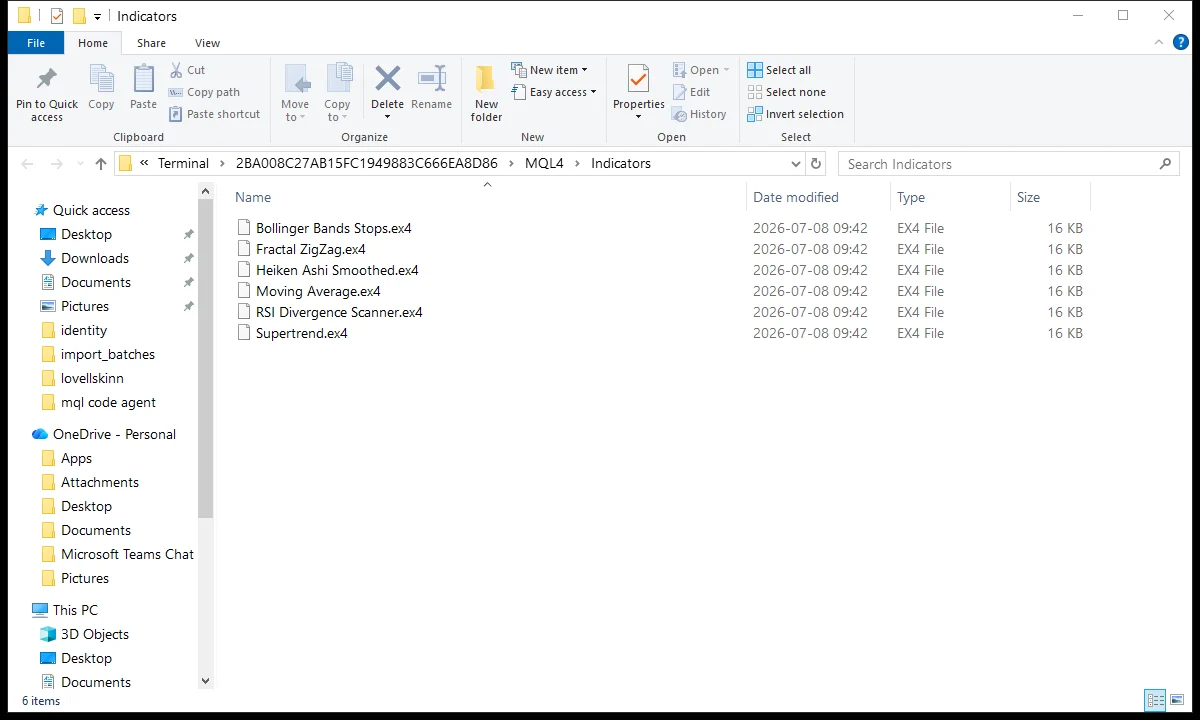
- Inside the window that opens, go to MQL4 → Indicators.
- Copy the
.ex4file into that Indicators folder. - Back in MT4, right-click Navigator → Indicators and choose Refresh, or simply restart the terminal.
- Finally, drag the indicator from the Navigator onto your chart, set the inputs, and click OK.
Install a custom indicator on MetaTrader 5
- Unzip the indicator first, then locate the
.ex5file. - Open MetaTrader 5 and click File → Open Data Folder.
- Next, go to MQL5 → Indicators.
- Copy the
.ex5file into the Indicators folder. - Right-click Navigator → Indicators and choose Refresh, or restart MT5.
- Finally, drag the indicator onto your chart, confirm the inputs, and click OK.
Where MetaTrader stores indicators
Custom indicators live inside the platform’s data folder, not in the Program Files installation folder. That is why every step above starts with File → Open Data Folder — it takes you straight to the right place, even on a portable or multi-terminal setup. Inside the data folder, MT4 uses the MQL4 directory while MT5 uses MQL5, and indicators always sit in the Indicators sub-folder. Also, Expert Advisors go in Experts and scripts in Scripts, so make sure you drop the file into Indicators. Finally, if you copied the file while the terminal was open and it does not appear, simply refresh the Navigator or restart the platform.
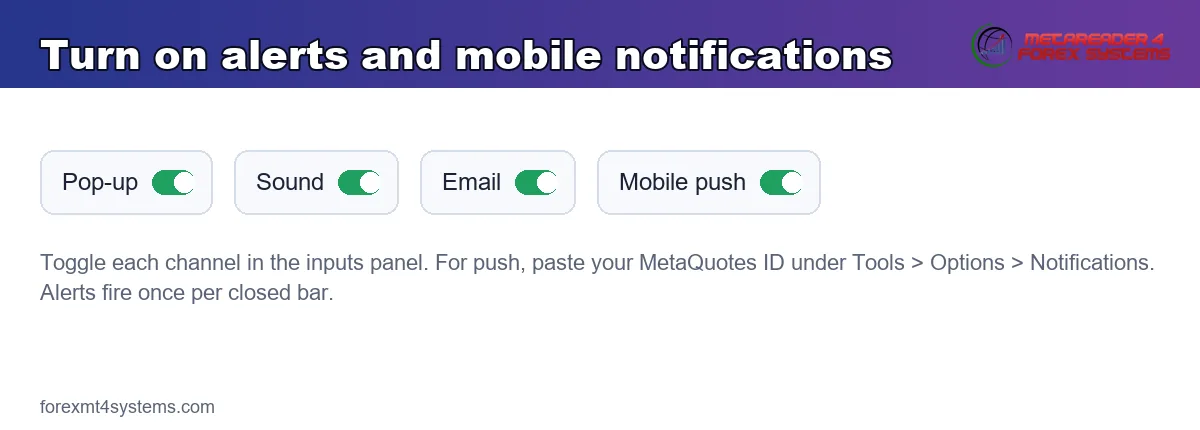
Turn on alerts and mobile notifications
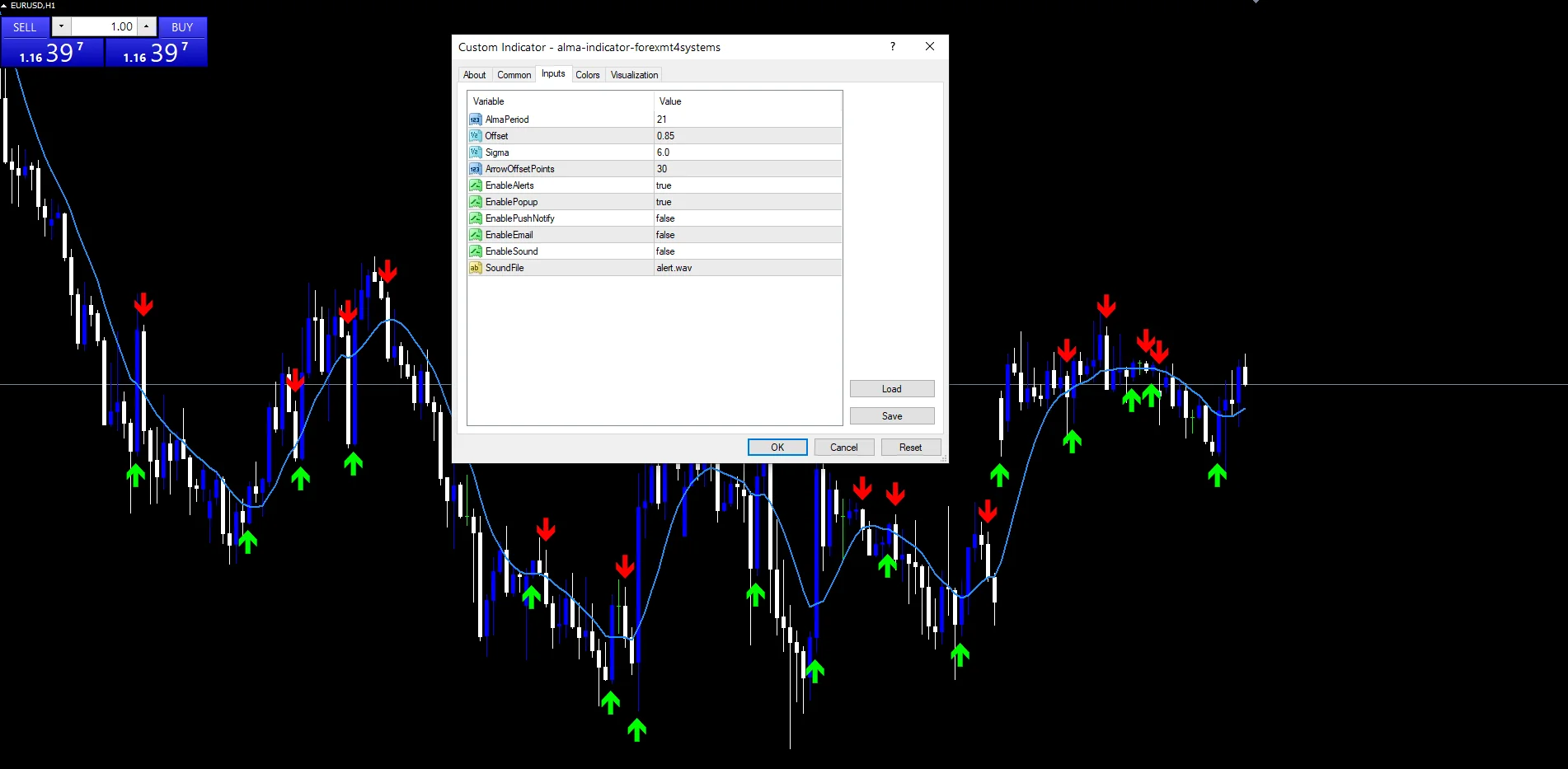
Most of our indicators include a built-in alert system. After you drag the tool onto a chart, the inputs panel lets you switch on pop-up alerts, a sound alert, email alerts, and mobile push notifications independently. For push notifications, first install the MetaTrader mobile app, then open Tools → Options → Notifications on the desktop, and finally paste the MetaQuotes ID shown in the app. Because alerts fire once per closed bar, the tool prompts you on confirmed signals instead of flooding you with intrabar noise. For the platform side, the official MetaTrader indicators documentation goes into more depth.
How to update or remove an indicator
To update an indicator, first close it on any open charts, then replace the old .ex4 or .ex5 with the new file of the same name, and refresh the Navigator. To remove one from a chart, right-click the chart, choose Indicators List, select the tool, and click Delete. Finally, to uninstall it completely, delete the file from the Indicators folder and refresh once more. This does not affect anything else on the platform.
Common problems when you install MT4 and MT5 indicators
- The indicator does not appear in the Navigator. First confirm the file sits in
MQL4/Indicators(MT4) orMQL5/Indicators(MT5), then right-click and Refresh, or restart the terminal. - Nothing draws on the chart. Usually the timeframe needs more history, or the tool is still in its warm-up period on the far left. Scroll back, or let more bars load, and the lines appear.
- “Indicator cannot load” or wrong platform. An
.ex4file runs on MetaTrader 4 only, while an.ex5runs on MetaTrader 5 only. So copy the file that matches your platform. - Alerts do not arrive. Enable the alert toggles in the inputs; for push, also verify your MetaQuotes ID under Tools → Options → Notifications.
- Your system blocked the file after download. Right-click the zip, open Properties, unblock it, then unzip and copy the
.ex4or.ex5across.
Tips to get the most from your indicators
Once the file sits in the Indicators folder and you refresh, the tool behaves like any built-in indicator. First, test it on a demo account; next, learn how its inputs change the signals; and above all, combine it with your own analysis rather than trading every alert blindly. For example, if chart tools are new to you, Investopedia’s primer on technical indicators makes a solid starting point. Finally, when you want more, browse the full collection of free MT4 and MT5 indicators, or jump straight to the MT4 indicators hub.
FAQ
Where do I put MetaTrader indicators?
They go into the data folder: MQL4/Indicators on MT4 and MQL5/Indicators on MT5. Simply open it from File → Open Data Folder, then refresh the Navigator.
Do I need the source code to install MT4 and MT5 indicators?
No. The downloads run as compiled .ex4 and .ex5 files, so there is nothing to compile.
Will these indicators work with any broker?
Yes. Because custom indicators run inside your MetaTrader terminal, they work with any broker whose platform is MT4 or MT5.
Can I use the same indicator on MT4 and MT5?
You use the matching file for each platform — the .ex4 on MT4 and the .ex5 on MT5. Our downloads include both files where available.
Why is my indicator not showing after I copied it?
Most likely the terminal was open when you copied the file. So right-click
Navigator → Indicators → Refresh, or restart the platform, and it appears.
Are results guaranteed?
No. Trading involves risk. Results are not guaranteed, and past performance is not indicative of future results. Therefore, treat any indicator as one input in your own analysis, and test it before trading live.