
This guide shows you exactly how to install MT4 and MT5 scripts on your MetaTrader platform, step by step. Every script on forexmt4systems.com arrives as a compiled file — an .ex4 for MetaTrader 4 and an .ex5 for MetaTrader 5 — so once you copy it into the correct folder it runs from your chart like any built-in tool. In short, the whole job takes about a minute, and it works the same way for every script on this site.
First, the key idea: a script is a one-shot tool. Unlike an indicator that draws all the time, or an Expert Advisor that trades all the time, a script runs a single action and then unloads. You download a file, drop it into one folder, refresh the platform, and drag it onto a chart. It does its job once and disappears, leaving nothing behind on the chart. Below, you will find the full walkthrough for both platforms, plus where MetaTrader keeps its files, how a script differs from an indicator and an EA, how to update or remove one, and how to fix the few issues that occasionally come up.
What you need before you install an MT4 or MT5 script
Before you begin, get the following ready:
- A working installation of MetaTrader 4 or MetaTrader 5 from your broker or from MetaQuotes.
- The script you downloaded from this site, unzipped. You will see an
.ex4file for MT4 or an.ex5file for MT5. - A chart open on the pair or instrument you want to work on.
Because the downloads arrive as compiled, ready-to-run files, you do not need the MQL source code, and you never have to open MetaEditor. As a result, installation stays simple and identical across every script in the library.
How to install and run an MT4 or MT5 script step by step
The core idea stays the same on both platforms: first you copy the file into the terminal’s Scripts folder, then you refresh the Navigator, and finally you drag it onto a chart to run it once. The platform-specific instructions follow underneath.
Install and run a script on MetaTrader 4
- Download and unzip the script, then locate the
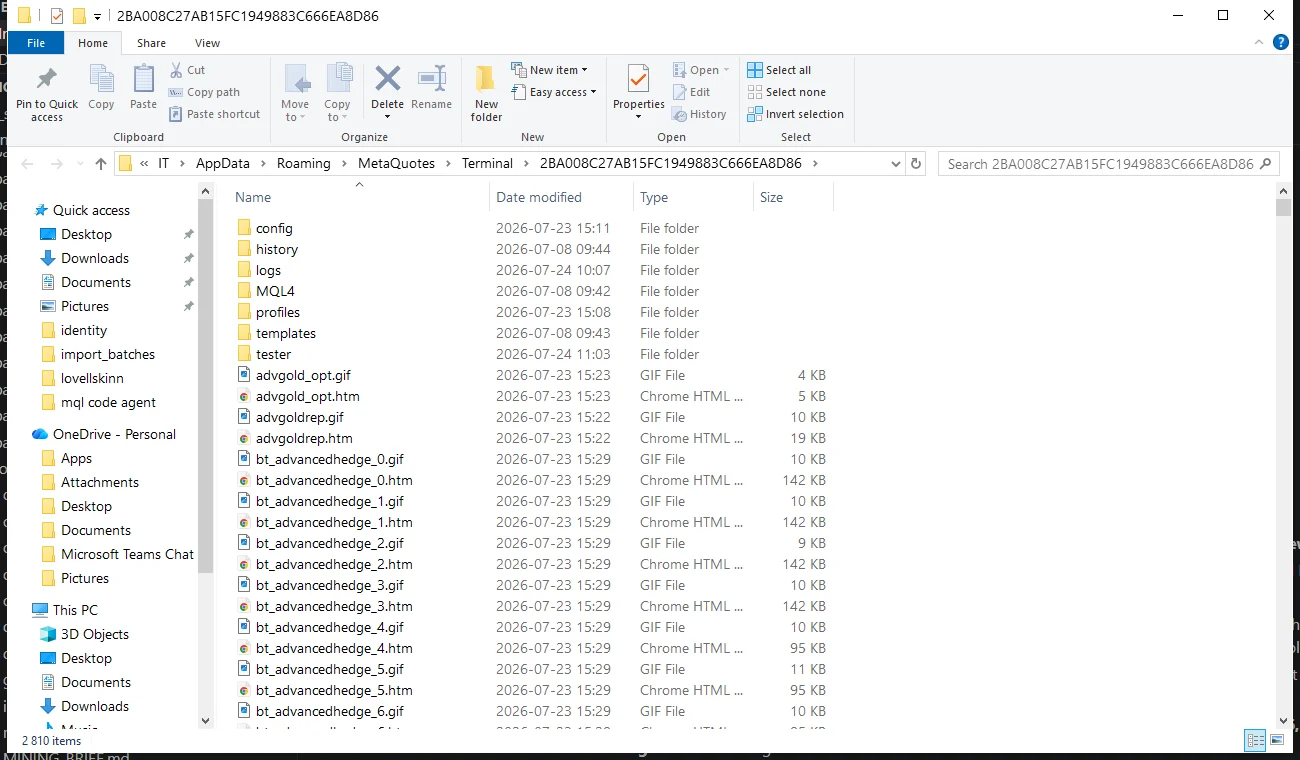
.ex4file. - Open MetaTrader 4 and click File → Open Data Folder.
- Inside the window that opens, go to MQL4 → Scripts.
- Copy the
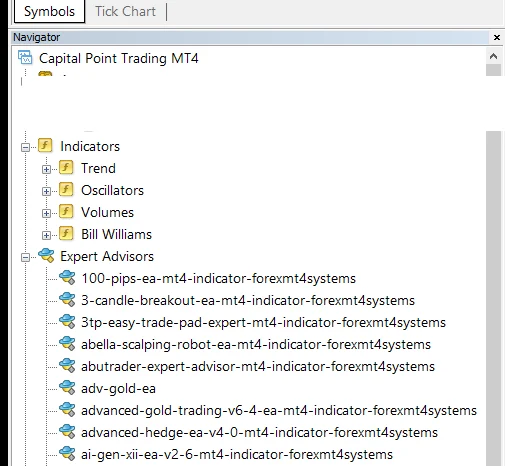
.ex4file into that Scripts folder. - Back in MT4, right-click Navigator → Scripts and choose Refresh, or simply restart the terminal.
- Finally, drag the script from the Scripts section of the Navigator onto your chart. When the inputs dialog opens, set your options and click OK. The script runs once and then unloads on its own.
Install and run a script on MetaTrader 5
- Unzip the script first, then locate the
.ex5file. - Open MetaTrader 5 and click File → Open Data Folder.
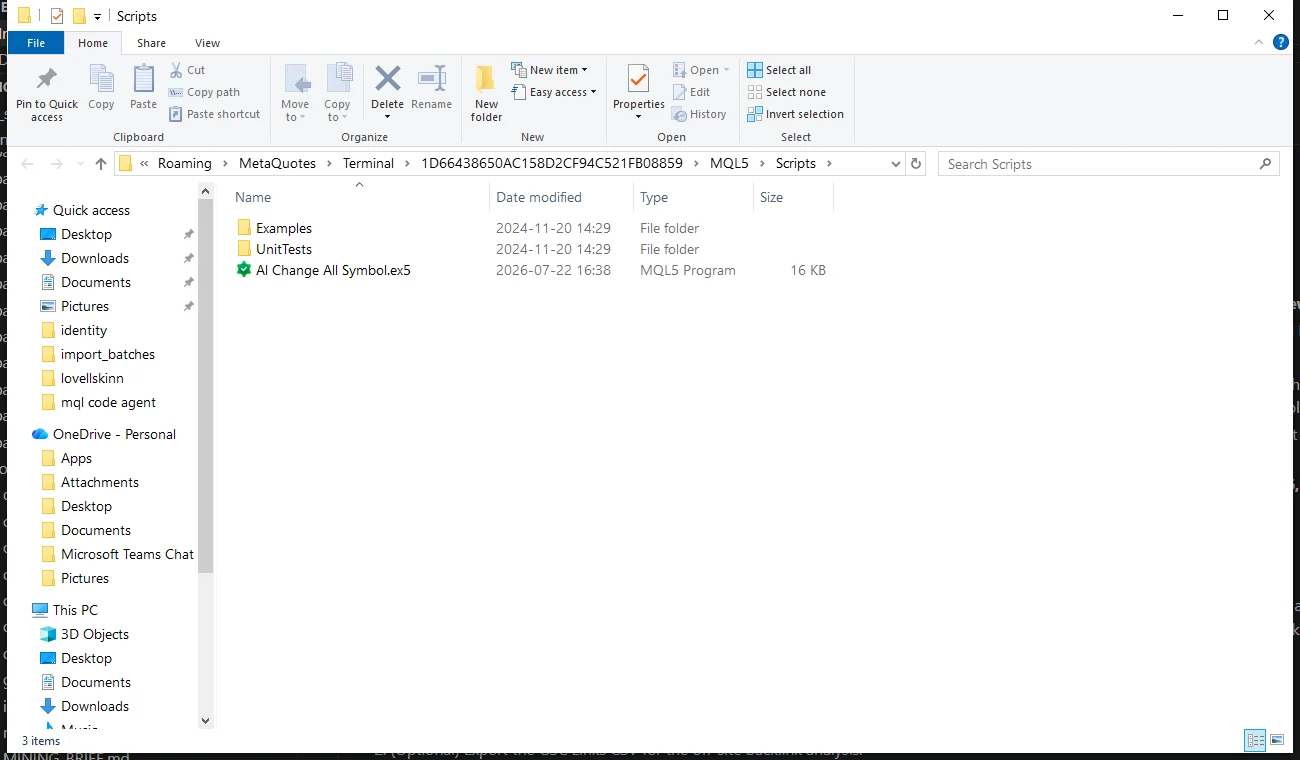
- Next, go to MQL5 → Scripts.
- Copy the
.ex5file into the Scripts folder. - Right-click Navigator → Scripts and choose Refresh, or restart MT5.
- Finally, drag the script onto your chart, confirm the inputs, and click OK. It performs its action once, then removes itself from the chart.
Note that a script does not stay attached the way an indicator or EA does. There is no small smiley or icon left in the top corner, because the script has already finished. To run it again, simply drag it onto the chart a second time.
Where MetaTrader stores scripts
Scripts live inside the platform’s data folder, not in the Program Files installation folder. That is why every step above starts with File → Open Data Folder — it takes you straight to the right place, even on a portable or multi-terminal setup. Inside the data folder, MT4 uses the MQL4 directory while MT5 uses MQL5, and scripts always sit in the Scripts sub-folder. Also, indicators go in Indicators and Expert Advisors in Experts, so make sure you drop the file into Scripts and nowhere else. Finally, if you copied the file while the terminal was open and it does not appear, simply refresh the Navigator or restart the platform.
How a script differs from an indicator and an Expert Advisor
MetaTrader runs three kinds of custom tool, and it helps to know which is which before you install one:
- An indicator draws continuously. It attaches to the chart and keeps redrawing its lines, arrows, or levels on every tick. It stays on the chart until you remove it.
- An Expert Advisor trades continuously. It stays attached, watches the market, and can place, modify, or close orders on every tick while AutoTrading is switched on.
- A script runs once. It performs a single action — for example closing a set of orders, drawing a set of objects, exporting data, or applying a template — and then unloads immediately. It does not stay attached, and it does not react to new ticks.
Because a script is a one-shot utility, there is no AutoTrading button to enable for it and, as a general rule, a script places no trades. It simply carries out its task and finishes. If a particular script is built as a trade tool, its own inputs dialog and description will make that clear, but the default behaviour of a script is to run once and stop.
| Tool | Folder | How it runs | Stays on chart? |
|---|---|---|---|
| Indicator | Indicators |
Draws on every tick | Yes |
| Expert Advisor | Experts |
Trades on every tick | Yes |
| Script | Scripts |
One action, then unloads | No |
How to update or remove a script
To update a script, simply replace the old .ex4 or .ex5 with the new file of the same name in the Scripts folder, then refresh the Navigator. Because a script does not stay attached, there is nothing to close on the chart first. To remove a script from the platform, delete the file from the Scripts folder and refresh once more. This does not affect anything else on the platform, and any indicators or Expert Advisors you use stay exactly as they were.
Common problems when you run a script
- The script does not appear in the Navigator. First confirm the file sits in
MQL4/Scripts(MT4) orMQL5/Scripts(MT5), then right-click Navigator → Scripts and choose Refresh, or restart the terminal. - “Not allowed to run” or a DLL prompt. Open Tools → Options → Expert Advisors and allow script execution; if the script asks for DLL imports, tick that option only when you trust the source.
- Nothing seemed to happen. That is usually normal — the script ran once and unloaded. Check the Experts tab and the Journal tab at the bottom of the terminal, where the script logs what it did.
- Wrong platform file. An
.ex4file runs on MetaTrader 4 only, while an.ex5runs on MetaTrader 5 only. So copy the file that matches your platform. - Your system blocked the file after download. Right-click the zip, open Properties, unblock it, then unzip and copy the
.ex4or.ex5across.
Tips to get the most from your scripts
Once the file sits in the Scripts folder and you refresh, the script behaves like any built-in one. First, test it on a demo account so you can see exactly what it does before you use it live. Next, assign a hotkey: right-click the script in the Navigator, choose Set Hotkey, and pick a key combination so you can run it instantly without dragging. You can also combine a script with a saved template, so one drag applies your objects, colours, or clean-up in a single step. Above all, read each script’s inputs before you click OK, since a script acts immediately once it runs. When you want more, browse the full collection of MT4 and MT5 scripts.
FAQ
Does an MT4 or MT5 script place trades?
As a general rule, no. A script is a one-shot utility that performs a single action and then unloads. Unless a specific script is described as a trade tool, it places no orders, and there is no AutoTrading to switch on.
Does a script stay on the chart like an indicator?
No. A script runs once and then removes itself. It leaves nothing attached to the chart, which is the main difference from an indicator or an Expert Advisor.
How is a script different from an indicator?
An indicator draws continuously and stays on the chart, while a script performs one action and unloads. Think of an indicator as ongoing analysis and a script as a single task.
Can I run the same script again?
Yes. Simply drag it from the Scripts section of the Navigator onto the chart again, set the inputs, and click OK. Each drag runs it once.
Why did nothing happen when I ran my script?
Most likely it worked. A script runs once and unloads silently, so check the Experts tab and the Journal tab at the bottom of the terminal to see what it did.
Are results guaranteed?
No. Trading involves risk. Results are not guaranteed, and past performance is not indicative of future results. Therefore, treat any script as a tool that assists your own process, and test it on a demo account before you use it live.