
The Custom Timeframes Chart Expert Indicator rebuilds your chart into a period MetaTrader does not offer. It buckets bars by wall clock time, then paints each finished bucket as a candle over price. A corner panel names the period the tool actually used. Traders who want a three hour view without leaving H1 get it in one window.
This build ships as a compiled .ex4 for MT4 and .ex5 for MT5; the screenshots below come from EURUSD H1.
| Platforms | MT4 (.ex4) + MT5 (.ex5) |
|---|---|
| Chart window | Main price chart |
| Plots | 5: Aggregate high, Aggregate low, Aggregate close, Flip up, Flip down |
| Alerts | popup, push notification, email, sound |
| Inputs | 40 |
What the Custom Timeframes Chart Expert Indicator renders
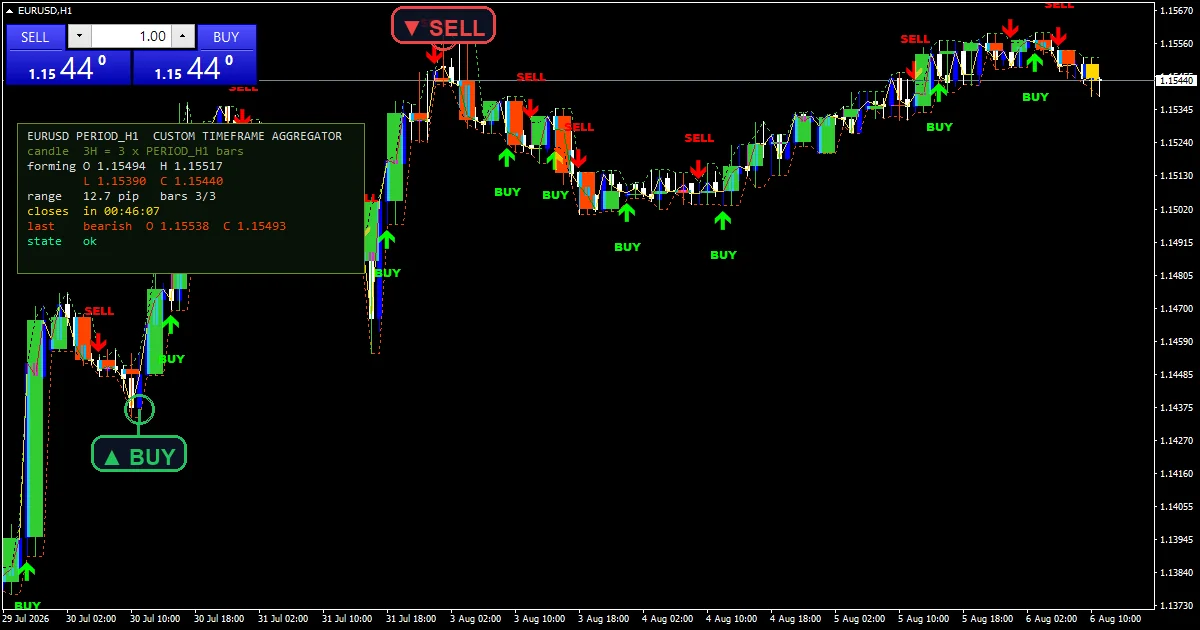
Rebuilt candles sit on top of the normal bars. Each one uses two objects, a rectangle for the body and a trend segment for the wick. InpMaxCandles keeps the newest 60 of them alive. InpFillBodies decides whether those bodies come out solid or hollow.
Three thin lines carry the same shape through the whole history. Aggregate high and Aggregate low trace the running extremes of the bucket in progress. Aggregate close follows the last price inside it. The lines run past the drawn candle window, so older structure stays readable.
Flip up and Flip down mark a change of direction. A completed bucket that closes bullish after a bearish one triggers Flip up. The lime marker lands on the first bar of the new bucket. Flip down does the reverse in red. BUY and SELL captions sit beside each marker while InpShowTags stays on.
- Aggregate high: line, lime green, width 1
- Aggregate low: line, orange red, width 1
- Aggregate close: line, gold, width 1
- Flip up: arrow, lime, width 2, arrow code 233
- Flip down: arrow, red, width 2, arrow code 234
Working it out
Absolute-time bucketing
Wall clock drives the grid. The bucket key comes from server time minus an anchor, divided by the custom period in seconds. A rolling bar count would slide the boundaries after every history reload. Fixed slots keep an eight hour candle opening at the same clock instants each day. InpAnchorOffsetMin defaults to 0 and shifts the whole grid when a desk wants its own alignment.
One candle per bucket
Aggregation inside a slot is textbook. Open comes from the oldest chart bar in the bucket. High takes the maximum, low takes the minimum. Close tracks the newest bar so far.
Validation happens before any of that. The request must span at least two chart bars, and it rounds up to a whole multiple of them. InpFallbackMult defaults to 3 and supplies the chart-bar multiple when the request comes in too small.
Flip detection on completed buckets
Direction comes from the bucket, not the bar. A finished bucket reads bullish when its close sits above its open. A flip needs the previous bucket to read the other way. InpMinBarsApart defaults to 3, so a second marker on the same side waits at least that long. InpRequireExtreme defaults to false, and it demands that the signal bar also be the local extreme once you turn it on.
What it is telling you
Read the rebuilt candles first. A solid lime body says the custom period closed bullish. An orange-red body says the opposite. The gold outline marks the candle still forming, so its high and low can still change.
Flip up and Flip down give the timing. Each marker lands on the first bar after a bucket completes, which means the signal never moves once it prints. The BUY or SELL caption beside it repeats the side in plain text.
The panel closes the loop. It states the period the tool used, the aggregated open, high, low and close, and the countdown to the next bucket. Check that line whenever a fallback kicks in, because the tool may round your request up.
Alert channels in this build: popup, push notification, email and sound, one message per closed bar.
Alerts sit behind EnableAlerts, with popup, push notification, email and sound on separate switches. Each completed flip sends one message on the bar that opens the new bucket, and never again on later ticks.
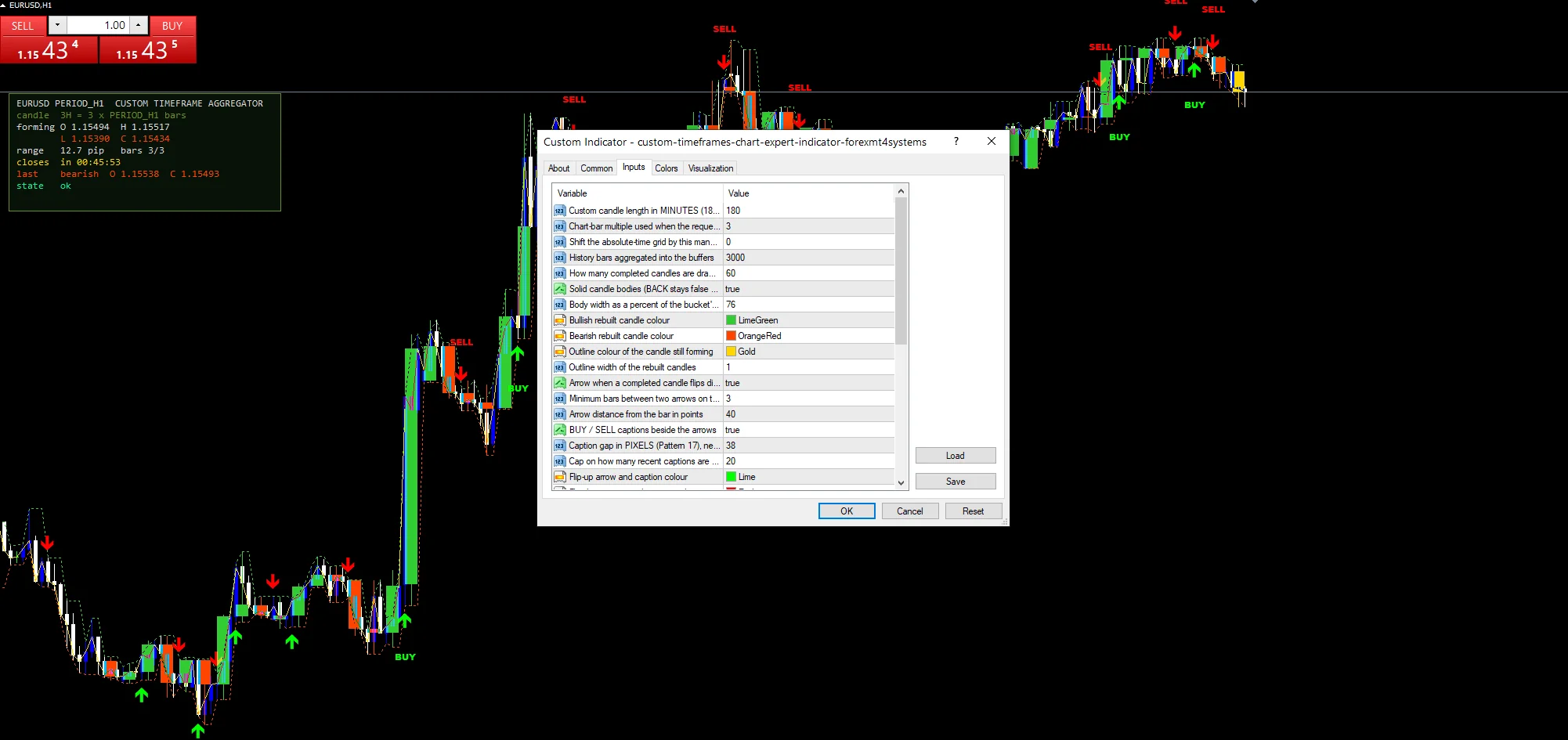
Every Custom Timeframes Chart Expert Indicator input
Core settings: The custom period
| Setting | What it does | Default |
|---|---|---|
InpCustomMinutes |
Custom candle length in MINUTES (180 = a 3 hour candle). Sets the custom candle length in minutes and ships at 180, which builds a three hour candle; pick any clock period your chart period divides into. | 180 |
InpFallbackMult |
Chart-bar multiple used when the request is too small. Supplies the chart-bar multiple when the request spans fewer than two chart bars, and it ships at 3. | 3 |
InpAnchorOffsetMin |
Shift the absolute-time grid by this many minutes. Shifts the whole clock grid by this many minutes so a desk can align buckets to its own session. | 0 |
Core settings: Rebuilt candles
| Setting | What it does | Default |
|---|---|---|
InpMaxCandles |
How many completed candles are drawn as objects. Controls how many completed candles stay on the chart as objects; drop it on slower machines. | 60 |
InpFillBodies |
Solid candle bodies (BACK stays false so they never vanish). Draws solid bodies when on and hollow outlines when off. | on |
Core settings: Flip arrows
| Setting | What it does | Default |
|---|---|---|
InpMinBarsApart |
Minimum bars between two arrows on the SAME side. Keeps two markers on the same side at least this many bars apart, which stops one bucket run printing a cluster. | 3 |
InpRequireExtreme |
Optional: require the signal bar to be the local extreme. Adds an optional filter demanding the flip bar also be the local extreme, and it stays off unless you switch it on. | off |
InpTagGapPx |
Caption gap in PIXELS (Pattern 17), never points. | 38 |
InpMaxTags |
Cap on how many recent captions are drawn. Limits how many BUY and SELL captions the chart carries, which stops old text piling up. | 20 |
Core settings: Text fencing
| Setting | What it does | Default |
|---|---|---|
InpPriceScalePx |
Right margin owned by the price scale, in pixels. | 62 |
InpOneClickWpx |
Width of the one-click trade panel zone, top-left. | 260 |
InpOneClickHpx |
Height of the one-click trade panel zone, top-left. | 100 |
Core settings: Readout
| Setting | What it does | Default |
|---|---|---|
InpX |
Panel X offset (px). | 14 |
InpY |
Panel Y offset (px) – clears the one-click panel. | 120 |
Display settings
| Setting | What it does | Default |
|---|---|---|
InpMaxBars |
History bars aggregated into the buffers. | 3000 |
InpBodyWidthPct |
Body width as a percent of the bucket’s clock slot. | 76 |
InpBullColor |
Bullish rebuilt candle colour. | lime green |
InpBearColor |
Bearish rebuilt candle colour. | orange red |
InpFormingColor |
Outline colour of the candle still forming. | gold |
InpCandleWidth |
Outline width of the rebuilt candles. | 1 |
InpShowFlips |
Arrow when a completed candle flips direction. | on |
InpArrowOffsetPts |
Arrow distance from the bar in points. | 40 |
InpShowTags |
BUY / SELL captions beside the arrows. | on |
InpBuyColor |
Flip-up arrow and caption colour. | lime |
InpSellColor |
Flip-down arrow and caption colour. | red |
InpLabelEdgePadPx |
Padding kept clear at the chart edges, in pixels. | 10 |
InpAvoidPanel |
Keep arrows and captions clear of the info panel. | on |
InpShowPanel |
Show the aggregated OHLC panel. Shows the aggregated readout in the corner; turn it off when you need a clean picture. | on |
InpCorner |
Panel corner (0=UL 1=UR 2=LL 3=LR). | 0 |
InpFontSize |
Panel font size. | 9 |
InpFont |
Panel font (monospaced keeps the columns square). | Consolas |
InpPanelBg |
Panel background (dark moss). | RGB 8,18,8 |
InpBorderColor |
Panel border colour. | olive drab |
InpTextColor |
Panel body text colour. | gainsboro |
Alert settings
| Setting | What it does | Default |
|---|---|---|
EnableAlerts |
Master alert switch. | on |
EnablePopup |
Terminal popup alert. | on |
EnablePushNotify |
Push notification to the MetaQuotes ID. | off |
EnableEmail |
E-mail alert (configure Tools > Options > Email). | off |
EnableSound |
Play a sound file on a completed candle flip. | off |
SoundFile |
Sound file name inside terminal Sounds folder. | alert.wav |
Symbols and timeframes
The screenshots come from EURUSD H1, where a 180 minute request lands on a clean three bar bucket. Any instrument with continuous quotes behaves the same, since the maths touches only open, high, low and close. Choose a chart period that divides into your target, or the tool rounds up and says so. Intraday traders often run M5 charts with a thirty minute target. Swing traders push H1 charts up to an eight hour or two day view.
The downsides
Aggregation cannot invent data. A missing bar inside a bucket leaves a candle built from whatever the broker supplied. Weekend gaps and outages then show up as odd shapes.
Flip markers follow completed buckets, so they arrive late by design. On a three hour bucket you wait up to three hours for confirmation. That lag is the price of the smoother read.
Object counts add up fast. Sixty rebuilt candles mean well over a hundred chart objects before captions and the panel, and a tired terminal will feel it. Lower InpMaxCandles and InpMaxTags on older machines.
The tool draws a view, not a signal engine. A flip only says the last bucket changed colour, and it makes no claim about what comes next.
Copy the compiled Custom Timeframes Chart Expert Indicator file into your MQL4/Indicators folder, and the MT5 build into MQL5/Indicators, then restart the terminal and drag it onto a chart. The step-by-step guide with screenshots is at how to install MT4 and MT5 indicators.
Background reading on the method behind the Custom Timeframes Chart Expert Indicator: Swap spread on Wikipedia, Wyckoff Stock Analysis at StockCharts ChartSchool.
Download the Custom Timeframes Chart Expert Indicator for MT4 and MT5
The zip holds the compiled Custom Timeframes Chart Expert Indicator build for MT4 and MT5, plus a short README. Compiled files only, no source. Enter your email below and the download link arrives in your inbox.
Download this indicator free
Enter your email and the file is yours. You also get the full MT4 and MT5 library.
FAQ
What happens when InpCustomMinutes asks for less than the chart period?
The tool refuses to draw nonsense. It checks the request against the chart period, and anything spanning fewer than two chart bars falls back to a multiple of chart bars instead. Requests that do not divide cleanly round up to the next whole multiple. The panel always states the period it ended up using.
Do the rebuilt candles replace the normal EURUSD H1 candles?
No. The rectangles and wick segments draw on top of the chart’s own bars, so both stay visible. Many traders switch the terminal chart to a line or thin bar style so the rebuilt period reads cleanly. Nothing changes on the underlying data feed.
Why did a Flip up marker appear three bars after the low?
Direction only settles when a bucket completes. The marker lands on the first bar of the next bucket, which can sit several chart bars past the actual turn. InpMinBarsApart then blocks a second same-side print for a few bars. That trade-off keeps the marks stable instead of flickering.
Which chart period suits a three hour bucket on EURUSD H1?
H1 divides into three hours exactly, so the buckets line up with no rounding at all. M30 works too and gives six chart bars per bucket. H4 does not, because a single chart bar already exceeds the request, and the fallback takes over. Check the panel line after any change.
Are results guaranteed?
No. Trading involves risk. Results are not guaranteed; past performance is not indicative of future results. Use the Custom Timeframes Chart Expert Indicator as one input. Always backtest before trading live.
External references
- The core method is documented in Swap spread on Wikipedia.
- Additional market context is at Wyckoff Stock Analysis at StockCharts ChartSchool.

About the author
Written by Dominic Walsh, a Forex trader and MT4/MT5 indicator, Expert Advisor and script developer. Every tool on forexmt4systems.com is tested on live charts before release and ships with ready-to-use compiled MT4 (.ex4) and MT5 (.ex5) files. Learn more about the trader and developer behind this site.
How we build, test and correct every tool: Editorial & Testing Policy. Trading carries risk; see the disclaimer.